In Qonvas, we believe that a whiteboard should be more than just a collection of static shapes. It should be a dynamic space where ideas flow and connections are meaningful. That's why we've built one of the most advanced connector systems in the web-based design world.
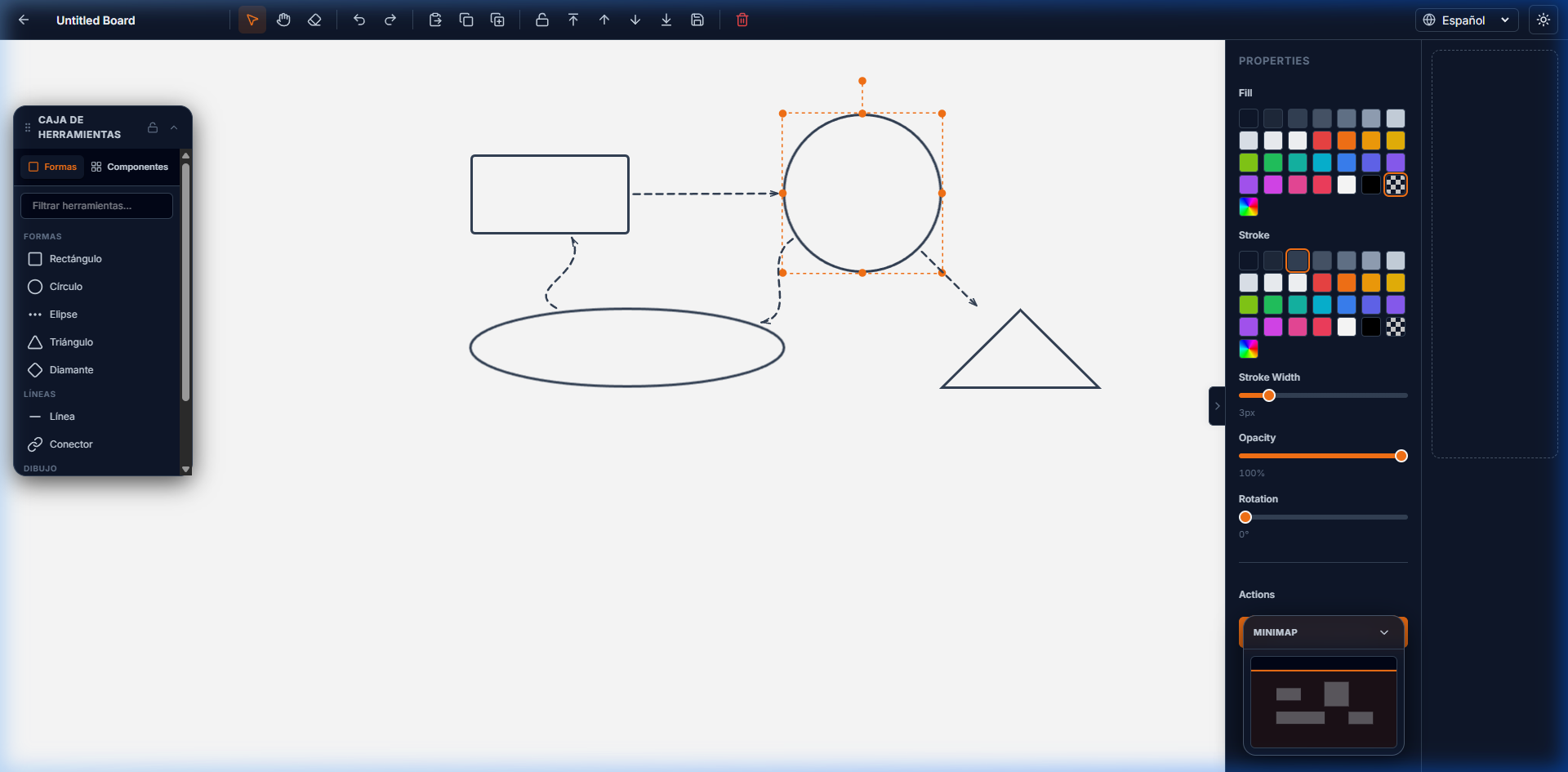
What are Dynamic Connectors?
Connectors in Qonvas are not just lines; they are "smart" paths that link objects together. Unlike traditional lines that stay where you put them, Qonvas connectors are anchored to the objects they connect. If you move a rectangle, the line follows it. If you resize a circle, the line adjusts its starting point automatically.
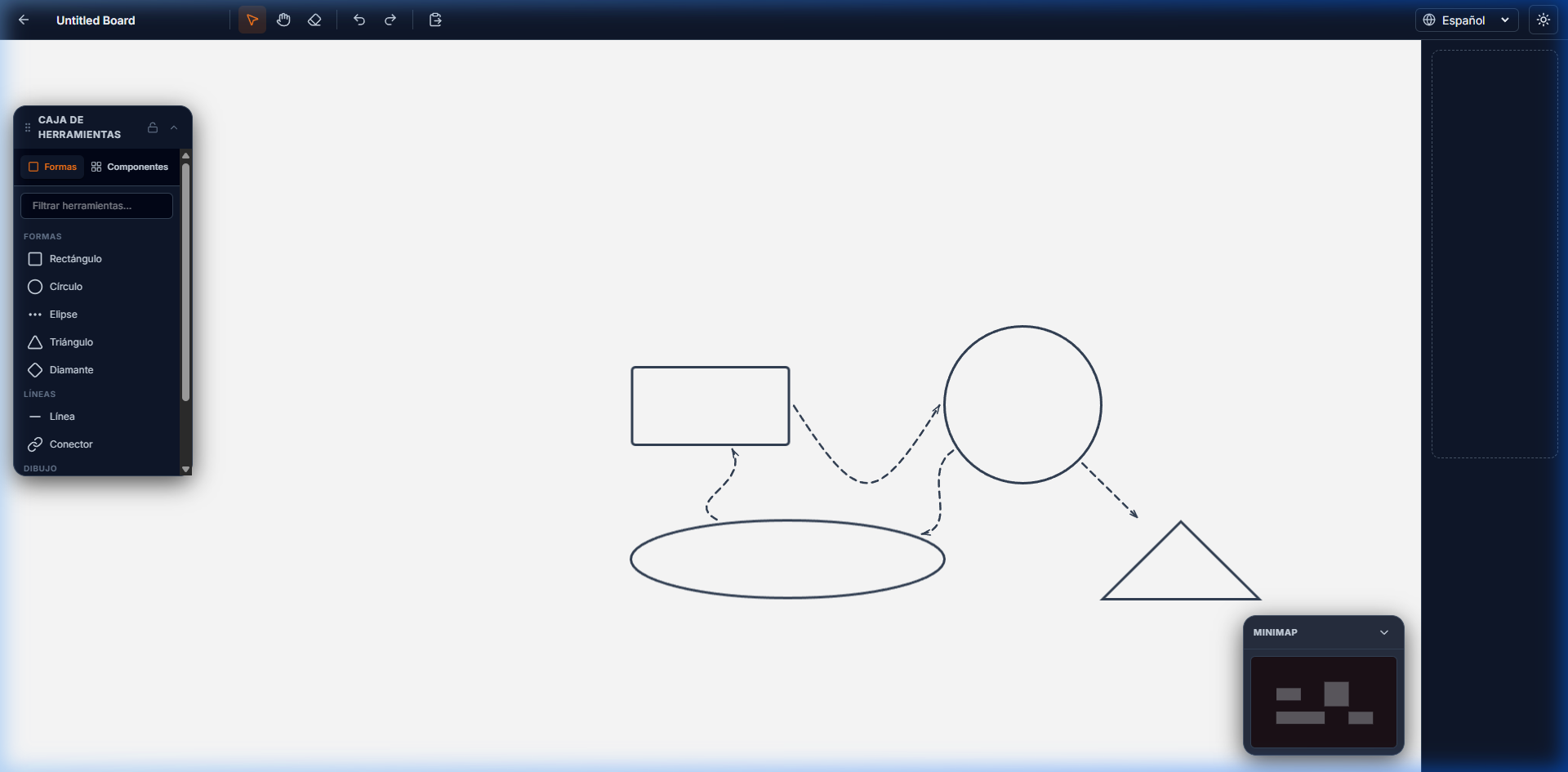
New: Sleek Dashed Lines
We've recently updated our connector system to feature sleek, professional dashed lines. This design choice helps differentiate connectors from the solid borders of shapes, creating a clearer visual hierarchy in complex flowcharts or mind maps.
Key Features
- Intelligent Edge Snapping: Connectors automatically calculate the closest point on an object's boundary, ensuring your diagrams always look clean.
- Organic Bézier Curves: Our system uses smooth cubic Bézier curves to create natural, flowing paths instead of jagged lines.
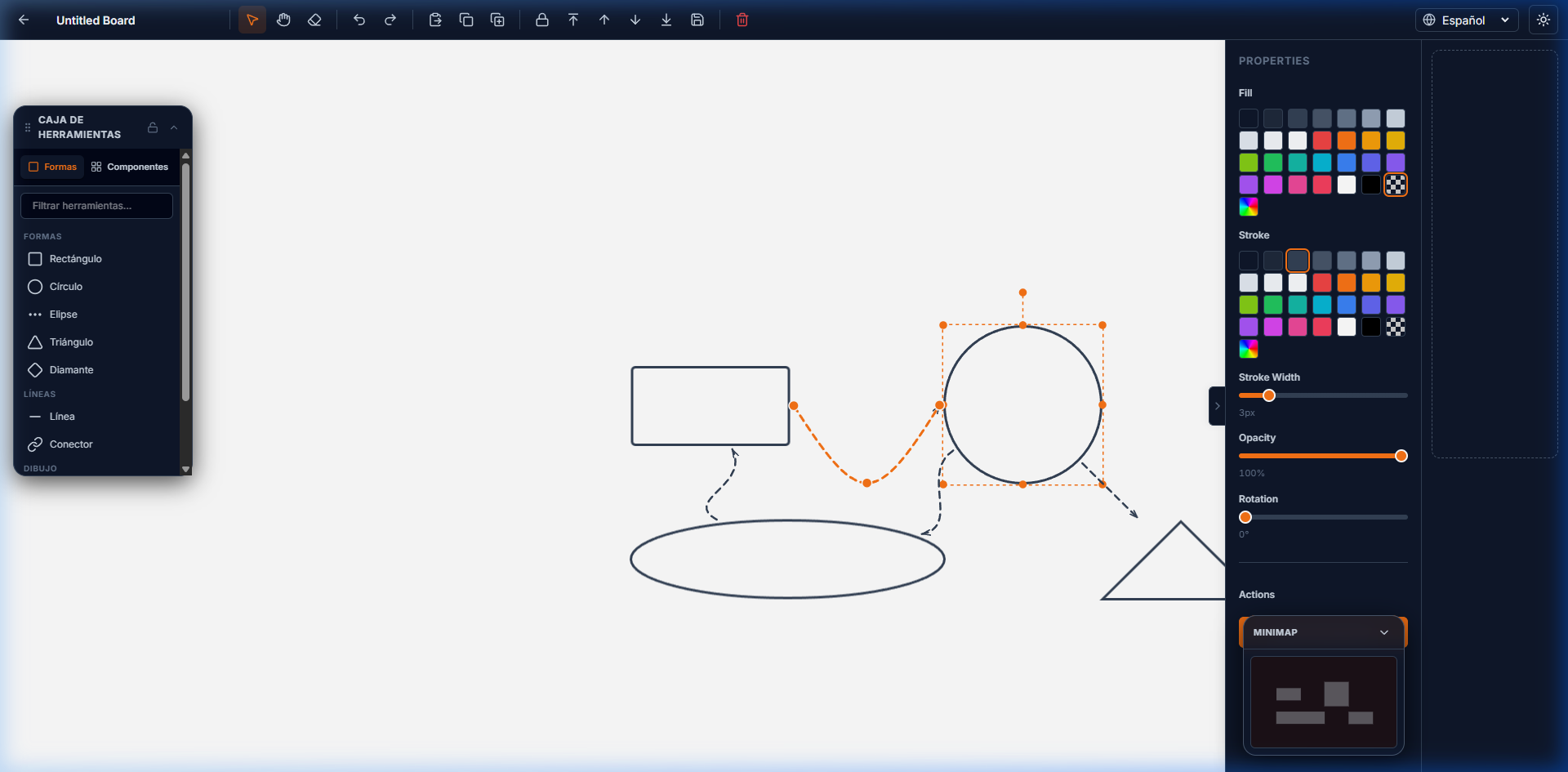
- Custom Bend Handles: Every connector features a middle handle that allows you to adjust the curvature and anchor position with ease.
- Visual Feedback: While dragging a new connector, Qonvas provides real-time dashed previews and snapped indicators.
- Quick Navigation: Click on any connector to instantly pan the view to the other end of the connection—perfect for navigating large boards.
Getting Started
To start using connectors, simply select the Connector Tool from the sidebar (or press the 'C' shortcut). Click on any shape to start the connection, and drag to another shape to snap it into place. From there, you can select the connector at any time to adjust its path using the purple handles.